If you’re a small business owner, blogger or entrepreneur it’s good to stand out from the crowd. Because, let’s face it, there’s a lot of competition out there! Or maybe you’re a busy mum trying to work out how to cut costs for birthday parties whilst still wanting to look like you have made a big effort. That’s why it’s so important to create the best digital or printed designs. You can do this and really stand out by using the free fonts from Font Bundles.
Disclaimer: This is a sponsored blog post
How to create a virtual birthday party invitation using Font Bundles and Canva
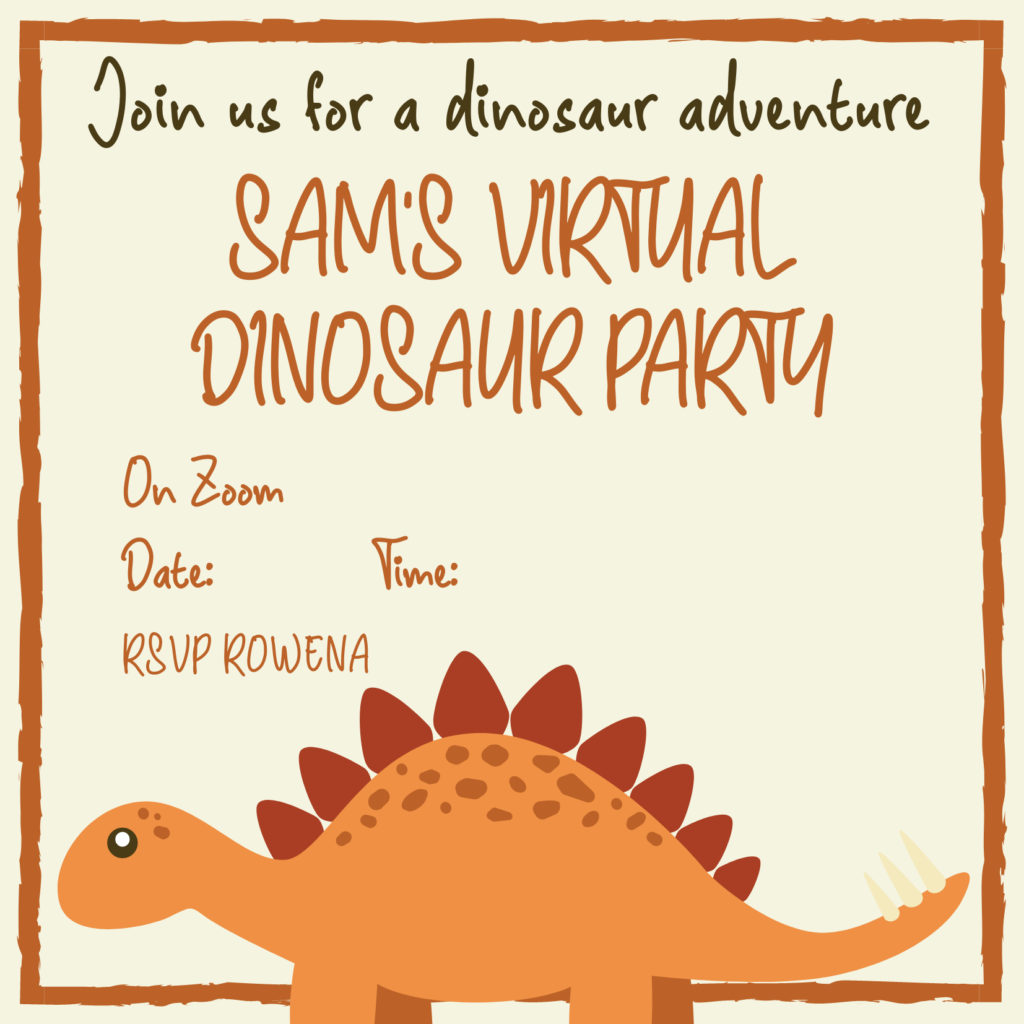
It’s my son’s birthday next month and I’m planning a virtual birthday party. I want as many of his friends to come as possible so I have created an awesome birthday invite to send to all his friends. The best thing is, these invites are free to make and really stand out! Plus by sending them digitally I save money on postage and printing costs as well as the cost of buying invites. It didn’t take long to design and I haven’t sent ages writing out 30 to 40 kids invites!
Step One: Create a Canva account
First up login to Canva. You can create a free account and you only need to pay for Canva if you want to unlock more options. I personally have a pro Canva account as I use it a lot for my blog.
Step Two: Create a free account with Font Bundles and choose your free font
Now head over to font bundles and create a free account. This is the fun bit, choose your font! I love Font Bundles handwriting fonts. A handwriting font offers a personal touch whilst demonstrating a creative flair and style.
I selected for my son’s invitations the toddler handwriting font as it is fun and perfect for kids designs. I checked the license before I downloaded to make sure it was ok to use. I then downloaded the font and unzipped the folder to access the files.
Step Three: Add to your Brand Kit
Please note: You will need a Canva pro account in order to be able to upload a font. However, Canva have a 30 day free trial so take advantage of this.
Go back to your Canva tab and select Brand Kit on the left hand side. From here you can upload the font file into your brand kit. Meaning that when you go to create designs, the font will be available.
Step Four: Choose your template
Next head over to Templates on Canva and select Invitations. From here you will have access to lots of template designs or you can design your own using the elements and design features available. I chose for our virtual party invitation, ‘Orange Stegosaurus Dinosaur with Border Kids Party Invitation. Change the font (in my case to toddler) to make your invitation really stand out! Once you’ve changed the font and text you can download it for free in a variety of different formats including PDF, PNG or Jpeg.
Top Tip: If this is a digital invitation you can animate the invite to make the font really stand out. Select MP4 on the download option will bring up an Animate option on your design. Select the animation you love and have an awesome invite!
How to create an amazing free logo using Font Bundles and Canva
I’m looking to launch a new blog offering money making tips and advice for parents. There’s a lot of great money websites and blogs already out there and although I know my content will have the edge, I also need to demonstrate that. The most effective way of doing that is by having professional designs to complement the blog. So that’s why I’m sharing how to create top digital designs using handwriting fonts.
In this step by step guide I’m going to talk you through how to make an amazing free logo for your blog or business for FREE, again using Canva and Font Bundles.

Step One: Choose your Font
Log into Font Bundles and choose your font. For my logo I chose a free font, Sillingen as I loved the style. There are lots of wonderful fonts available, many of which are free of charge or at very reasonable prices. There are also brilliant font bundles you can purchase for a small fee i.e. I love the Big Farmhouse Font Bundle which is just £5.42 for eight fabulous fonts!
Step Two: Check Licenses
When choosing your font consider the type of license you need. For my logo, a premium license which allows commercial use is fine as it’s for my personal blog and as such there will only ever be one user. However, it’s worth noting that if my blog was to really hit off and I was getting over 100,000 page views the license wouldn’t cover me and as such I would need to change the font on my logo. As this is unlikely to happen I’m not too concerned but it’s definitely worth bearing this in mind, especially if you’re going to be using it on social media. As such it may be better to use a font that has a corporate license which offers unlimited users and unlimited use.
Step Three: Go to Canva
Head over to Canva and add your font (as mentioned previously you will need a Pro account for this but you can get a Pro account on a free 30 day trial). Once the font has been uploaded select logo templates. You can choose an existing design or get creative. Use your amazing font to really stand out! Then just simply download in your preferred format. I normally use PNG. And there you have it, your very own logo!


